Admin View
Overview
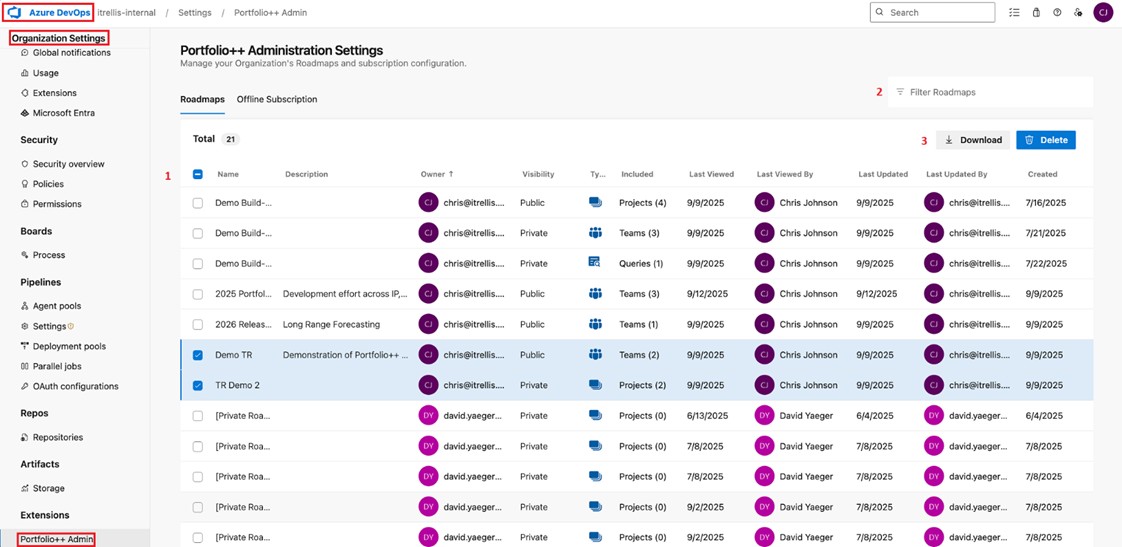
The Portfolio++ Administration Settings allow administrators to manage roadmaps across the organization and enable offline access to Pro features for Azure DevOps Server. From this area, you can view detailed roadmap data, filter results, and perform bulk actions such as exporting or deleting roadmaps.
- Roadmaps: View, delete or download a list of Roadmaps.
- Offline Subscription: Activate Pro features for Azure DevOps Server (TFS).
Access the Administration Settings
Prerequisites
To access the Portfolio++ Admin View, you must be a member of the Project Collection Administrators group, either directly or through a nested group.
Navigate to the Administration Settings
- Click the blue Azure DevOps logo in the top left corner.
- If needed, change the currently selected Organization in the left hand side. Otherwise, continue to the next step.
- In the bottom left corner select Organization Settings.
- Under Organization Settings, scroll down and select Portfolio++ Admin.
You must be a Project Collection Administrator or you will just see the following message:
This area is intended for Project Collection Administrators only. You can manage your own Roadmaps in the Portfolio++ Roadmap Directory page.
Grant Administration Access
In Azure DevOps, a Project Collection Administrator can be configured at the organization level.
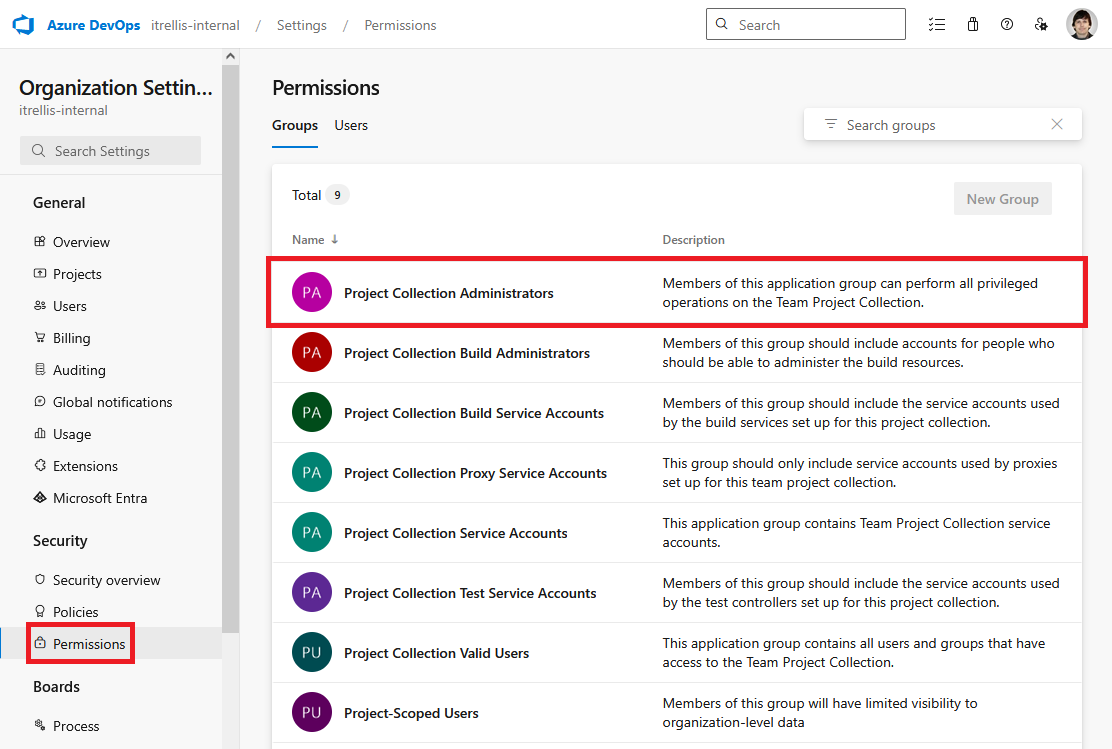
- Navigate to Azure DevOps Organization Settings
- Select Permissions
- Click Project Collection Administrators row
- Click Members tab
- Click Add button at the top right of the members table
- Add the user you would like to have access to Portfolio++ Admin view
This will also give the user elevated permissions in Azure DevOps. Review permisions tab for what permissions are given.
Roadmap Table
This page is similar to the Roadmap Directory view, but includes private roadmaps and additional details about last viewed/updated:
- Name: Name of the roadmap.
- Description: Description of the Roadmap.
- Owner: Displays the owner’s email and avatar.
- Visibility: Shows whether the roadmap is Public or Private. For private roadmaps, only a placeholder [Private Roadmap] is shown (name and description are hidden).
- Type: Symbol indicating roadmap type (Project, Team, Query, or Capacity). Hover to see a description.
- Included: Shows the number of items included in the roadmap. Hover to view details of what’s included.
- Last Viewed: Displays the date the roadmap was last viewed. Hover to see the exact local time.
- Last Viewed By: Identifies the user who last viewed the roadmap.
- Last Updated: Displays the date the roadmap was last updated. Hover to see the exact local time.
- Last Updated By: Identifies the user who last updated the roadmap.
Filter Roadmaps
Search by name, description, or owner’s email.
Actions
Perform actions on the currently selected rows (buttons only appear when rows are selected).
- Download: Export table data for the selected roadmaps as a CSV.
- Delete: Permanently remove the selected roadmaps.